
VSD Mini Macro Pad
4.1Editor score
Six customizable LCD keys
Compact USB-powered design
Dual RGB ambient light bars
This guide compares the best macro pad for streaming options by key count, audio controls, displays, compatibility, plugins, ergonomics, and ease of use.
A macro pad for streaming puts scene changes, sound effects, media controls, applications, and complex keyboard shortcuts within immediate reach. The best models combine customizable LCD keys with dependable software, useful visual feedback, and a layout that remains comfortable during long broadcasts, editing sessions, and gaming streams.
We compared ten macro pads based on their available controls, operating systems, plugin ecosystems, macro capabilities, displays, lighting, and practical extras. The list includes compact six-key pads, larger all-screen decks, and advanced consoles with knobs, touchscreens, audio functions, USB hubs, and adjustable stands.
Each review explains the strongest reasons to consider that controller while noting important limitations or setup considerations. Ratings and product details reflect the supplied listings, while software interfaces and compatible applications can evolve. Current deal terms and bundle availability may also change after publication.
4.1Editor score

4.8Editor score

4.9Editor score
This side-by-side comparison highlights the main differences in key count, display features, audio controls, software support, and desk footprint, helping streamers identify the most appropriate controller for their setup.


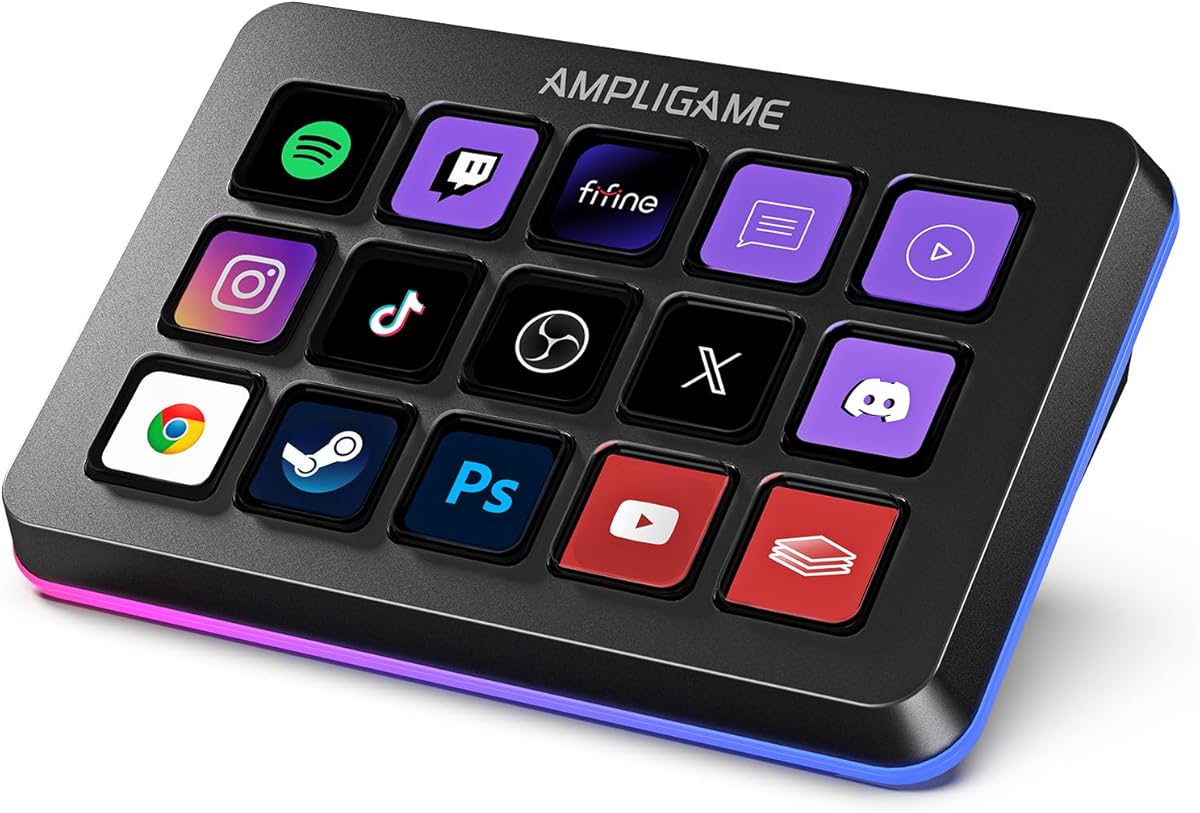


The Elgato Stream Deck MK.2 is the most balanced all-around macro pad for streaming in this comparison, earning a 4.8 customer rating. Its 15 LCD keys provide enough capacity for scenes, sound effects, applications, audio commands, and production tools without making the device feel excessively busy. The familiar Stream Deck concept also makes it a natural choice for creators who want a straightforward path from installation to a working command deck.
We may earn a commission when you buy through this link, at no additional cost to you.
The central advantage is one-touch operation with support for both individual commands and multi-action sequences. That makes it possible to combine an OBS scene change with another supported action, or to build a more elaborate broadcast sequence that would otherwise require several keyboard shortcuts. Each LCD key also provides visual feedback, helping a streamer understand which command is active while the main monitor remains focused on the audience.
Its strongest ecosystem includes Elgato 4KCU, OBS, Twitch, YouTube, Twitter, Discord, Spotify, and Philips Hue integrations, along with hotkey actions for film editing, music production, and photography. The trade-off is that the MK.2 concentrates on customizable keys rather than adding rotary knobs, a larger secondary screen, or dedicated audio mixing hardware. It is therefore less suitable for users who want precise knob-based control of levels while broadcasting.
The Stream Deck MK.2 is recommended for most streamers, podcasters, editors, and productivity users who want a dependable LCD keypad with broad software support. It does not attempt to be the most specialized studio console, but its combination of visual control, multi-action support, and mature integration makes it the strongest general recommendation in this guide.
Fifteen LCD keys create a balanced layout for essential production commands. Users can dedicate individual keys to scene changes, application launches, media operations, and frequently used editing actions while retaining visual confirmation of the current command.
Multi-action commands reduce repetitive sequences without requiring extensive technical expertise. A single press can initiate several supported actions in order, which is useful during fast-paced broadcasts and detailed post-production work.
We may earn a commission when you buy through this link, at no additional cost to you.
The VSD Mini Macro Pad offers a focused way to add stream controls without occupying much desk space, and it carries a 4.1 customer rating. Its six fully customizable LCD keys can display JPG, PNG, or GIF animations and execute individual or serial shortcut commands. That makes it a practical choice for a creator who primarily needs a few dependable scene, application, and media shortcuts.
We may earn a commission when you buy through this link, at no additional cost to you.
The mini form factor is particularly useful on a crowded desk or beside a compact keyboard. Two customizable RGB light bars provide visual ambience without turning the device into an entertainment-focused control surface. Built-in tools for a clock, weather, calendar, and stopwatch add value between broadcasts, while the USB-powered design avoids battery management during extended sessions.
The main caveat is setup. Unlike options that emphasize immediate plug-and-play use, this pad requires the exclusive VSD Craft software for full configuration. Linux users can pursue personalized adaptation through the official open-source SDK files, but native support is not offered in the same way as for Windows and macOS. Six keys also limit how many specialized commands can remain visible at once.
This mini pad is best for streamers who want the essentials in a small format, especially those already using the VSDinside ecosystem or comfortable installing dedicated configuration software. It is less convincing for a complex broadcast where operators need dozens of actions, physical audio controls, and a large collection of visible scenes.
Six animated LCD keys can be assigned to the actions used most often during a stream. This keeps essential commands visually organized and reduces the need to remember longer keyboard combinations.
Clock, weather, calendar, and stopwatch plugins turn the controller into a broader desktop aid. The result is useful for streamers who also handle scheduling, timing, and routine computer tasks.
We may earn a commission when you buy through this link, at no additional cost to you.
The Streonor S10 Stream Controller is the most feature-rich premium option in the group, with a 4.9 customer rating. It combines 10 customizable LCD keys, an integrated touchscreen, and four programmable rotary knobs in a single creator console. This combination makes it especially appropriate for streamers and editors who need immediate commands alongside more precise adjustments.
We may earn a commission when you buy through this link, at no additional cost to you.
LCD keys can handle shortcuts, hotkeys, macros, and application actions, while the touchscreen provides access to supported information and controls. Users can assign the knobs to volume, microphone levels, media playback, scrolling, zooming, or timeline adjustments. These physical controls are particularly valuable when a streamer needs to adjust something continuously without moving the mouse away from the main task.
The S10 also supports sequential multi-action workflows, allowing a key to trigger several supported actions together. Dedicated profiles can organize OBS Studio, Twitch, YouTube, Streamlabs, video editing, music control, office work, and gaming commands. The trade-offs are platform and software considerations: Linux is not supported, some third-party services may require an active account or subscription, and competing controller software should be removed before setup.
Choose the S10 when precise real-time control and a unified production surface matter more than a low-cost keypad. Its touch display and knobs add capabilities that basic key-only devices cannot replicate, making it a strong recommendation for serious creators, streamers, editors, and multitaskers.
Four programmable knobs support continuous tasks such as level changes, zoom adjustments, playback control, and timeline navigation. They are particularly useful when immediate tactile control is more valuable than a sequence of fixed commands.
Separate profiles let creators reorganize the same hardware for broadcasting, editing, music, office tasks, and gaming. This reduces the need to rebuild commands whenever the working context changes.
We may earn a commission when you buy through this link, at no additional cost to you.
The VSD M18 Macro Pad combines 18 programmable controls with a 4.4 customer rating, making it a flexible choice for creators who need more dedicated keys than a standard compact deck. The layout consists of 15 visual LCD keys and three physical buttons, with support for custom JPG, PNG, and GIF images to distinguish functions at a glance.
We may earn a commission when you buy through this link, at no additional cost to you.
Its Operation Follow function is a notable feature. Users can arrange multiple macro steps in a specified order or trigger them simultaneously, which supports game combinations, video editing operations, photography workflows, and repeated desktop tasks. Individual keys can also launch applications, open files or websites, enter text, manage media, and switch OBS scenes. The outer RGB ring adds adjustable ambience and includes an automatic color cycle.
Compatibility is broad for Windows 11 or newer and macOS 11 or newer, including OBS, Streamlabs, YouTube, Twitter, Discord, Excel, Word, and Photoshop. The device connects by USB-C, while custom RGB tones require a firmware upgrade. Native Linux plug-and-play use is not available, although SDK development documents are supplied for people creating custom adaptations.
The M18 is a good match for a streamer or multitasker who wants a generous number of programmable controls without moving to a knob-equipped studio console. Its limits are the lack of native Linux support and the need to manage software and firmware updates carefully.
The combination of LCD keys and physical buttons provides room for both quick command access and scene organization. That makes the pad useful for broadcasts that include chat, media, applications, and production controls.
Operation Follow can execute several assigned steps in a custom order or simultaneously. The feature shortens repetitive workflows without requiring a separate advanced control surface.
We may earn a commission when you buy through this link, at no additional cost to you.
The Stream Dock N1 takes a different approach with its vertical layout and three operating modes, earning a 4.7 customer rating. It is designed for left-hand use and can function as a shortcut keyboard, a standalone calculator, or a numeric keypad that complements a tenkeyless mechanical keyboard. That versatility makes it more than a simple streaming keypad.
We may earn a commission when you buy through this link, at no additional cost to you.
Fifteen LCD keys can hold files, browsers, applications, images, and videos for one-click access. Users can personalize those keys with their own images, screenshots, and GIFs. Compatibility includes OBS, PowerPoint, YouTube, Twitter, Discord, Excel, Word, Photoshop, and Adobe Premiere Pro, while the plugin marketplace adds utilities such as schedule reminders, weather, and calendars.
The vertical construction preserves desk space and is especially attractive beside a conventional keyboard. Its limitation is that the calculator and numeric keypad modes serve specific tasks rather than adding precision controls to a live production console. The included 24-month warranty also provides a point of reassurance, although the quality and usefulness of individual plugins will depend on the creator's workflow.
The N1 is recommended for left-handed users, compact setups, and creators who alternate between streaming shortcuts, numeric entry, and basic calculations. Those seeking dedicated knobs, a large touchscreen, or a denser control surface may find a more specialized model preferable.
Switching among shortcut, calculator, and numeric keypad modes gives the device broader utility. It can serve a live production workflow, then move to data entry or calculations without occupying additional desk space.
The upright layout reduces the horizontal footprint required by many LCD decks. Left-handed users can also keep frequently used commands close to their primary hand.
We may earn a commission when you buy through this link, at no additional cost to you.
The second VSD M18 listing provides the same broad 18-control concept in a slightly different product package, with a 4.5 customer rating. Its 15 LCD keys and three physical buttons can handle game combinations, application launches, media controls, and repeated production actions, while custom animated labels improve recognition.
We may earn a commission when you buy through this link, at no additional cost to you.
One-touch operation covers common tasks such as opening files, entering text, visiting websites, controlling media, and changing OBS scenes. The Operation Follow feature expands on that foundation by running multiple macro operations in sequence or at the same time. This makes the pad relevant to gaming, editing, music production, photography, and general office work.
The surrounding RGB ring supports automatic cycling and custom colors, adding visual interest to a dark setup. Compatibility includes Windows 11 and later, macOS 11 and later, OBS, Streamlabs, YouTube, Twitter, Discord, Excel, and Photoshop. As with other VSD options, Linux does not receive native plug-and-play support, and custom lighting tones may require firmware work.
This M18 is a strong alternative for users who want numerous programmable keys and macro sequencing at a moderate complexity level. It is less appropriate for someone seeking a compact six-key pad, a knob-equipped mixer, or effortless compatibility with Linux.
Users can choose whether assigned macro steps run together or in a chosen order. That flexibility supports both quick shortcuts and repeatable sequences.
The M18 is marketed across gaming, live production, editing, music, photography, and office work. Its breadth makes it useful to creators who want one programmable peripheral across several disciplines.
We may earn a commission when you buy through this link, at no additional cost to you.
The TreasLin N1 Stream Controller offers 18 customizable macro controls, 15 LCD buttons, two clickable buttons, and a rotary knob, earning a 4.4 customer rating. Its most distinctive feature is a knob-operated selector for shortcut, calculator, and numeric keypad modes, extending the deck beyond standard stream commands.
We may earn a commission when you buy through this link, at no additional cost to you.
VSD Craft software supports key assignment, drag-and-drop icons, screenshots, and custom images. The listing also highlights dynamic animated icons, while the marketplace contains more than 200 plugins, icon profiles, and scenes. Scenario profiles can separate daily tasks, creative applications, live streaming, and media controls, making it easier to reuse one device across different parts of a workflow.
The controller works with Windows, macOS, OBS Studio, and Streamlabs through USB-C, and the supplied materials emphasize straightforward installation. Spotify integration has a specific requirement: users must have an active Spotify Premium account. Some wording in the listing refers to other N-series models, so buyers should confirm the exact capabilities of the N1 with the seller and current software rather than assuming every feature from a related listing applies.
The TreasLin N1 is a good choice for users who value mode flexibility, animated customization, and a large plugin selection. It is less ideal for creators who need a compact layout or want to avoid account-dependent integrations entirely.
The rotary selector makes the transition between shortcut, calculator, and numeric keypad modes direct. Users can quickly adapt the deck when broadcasting gives way to data entry or calculations.
Dynamic icons make individual commands easier to distinguish than static labels. The result is a more informative display that can reflect different creative contexts.
We may earn a commission when you buy through this link, at no additional cost to you.
The Streonor S15 distinguishes itself through three non-touch status display panels, with a 4.6 customer rating. Those panels can present information such as weather, time, CPU temperature, GPU status, memory usage, and system performance. While they do not accept touch input, they add a useful at-a-glance monitoring layer to a conventional 15-key LCD deck.
We may earn a commission when you buy through this link, at no additional cost to you.
The main controls can be assigned to shortcuts, hotkeys, application actions, OBS scenes, tool launches, editing commands, and repeated tasks. STREONOR software also supports action flows that trigger multiple commands from one key. More than 100 plugins, icon packs, GIF icons, scenes, tutorials, and customizable layouts give creators considerable freedom in building the interface.
Preset pages are another major strength. A user can maintain separate layouts for streaming, editing, office work, and gaming, switching between scenes and shortcuts without rebuilding every control. The trade-offs are that Linux is unsupported, third-party app connections may require an active service account or membership, and the setup guide recommends uninstalling similar controller software and downloading the latest STREONOR software first.
The S15 is recommended for creators who want status information displayed beside their commands. It may be less compelling for users who only need a small number of buttons or for those requiring a large touch interface and rotary adjustment controls.
The three status panels can show system and environmental information without adding more interactive buttons. Creators can monitor selected data while keeping their main monitor focused on the broadcast.
Preset pages organize commands for live, editing, office, and gaming contexts. Switching contexts becomes more efficient because unrelated actions no longer need to share the same visible layout.
We may earn a commission when you buy through this link, at no additional cost to you.
The fifine D6 RGB Macro-Keyboard is a polished 15-key option for streamers and multitaskers, with a 4.6 customer rating. Its visual operation keypad presents the assigned applications directly on the touchscreen, allowing users to select and control supported functions without opening a collection of separate desktop windows.
We may earn a commission when you buy through this link, at no additional cost to you.
The deck supports OBS Studio, Streamlabs, Twitch, YouTube, and other software and plugins. A substantial collection of downloadable plugins and icons helps users build a recognizable command layout, while folders allow individual scenes to be processed independently. This makes the D6 useful for separating broadcast, editing, gaming, and general productivity tasks.
A glowing RGB ring provides nine controllable lighting modes, allowing the controller to complement a gaming setup or a darker streaming environment. The limitation is that it offers no rotary knobs for continuous adjustments, and the product guidance recommends updating both firmware and software before initial use. Some users may also need to adjust to performing actions through the visual screen rather than using dedicated physical knobs.
The D6 is a strong general-purpose choice for users who prioritize clear visuals, a large software library, and a 15-button layout. It is especially suitable for creators who already rely on OBS, Streamlabs, Twitch, or YouTube and want a polished command surface.
The touchscreen presents assigned applications in a single interface. This can reduce the need to navigate among many open windows while working in OBS or another production application.
Plugins, icons, and folders make it possible to separate different tasks and give each control a recognizable purpose. The nine lighting modes add further visual differentiation to the overall setup.
We may earn a commission when you buy through this link, at no additional cost to you.
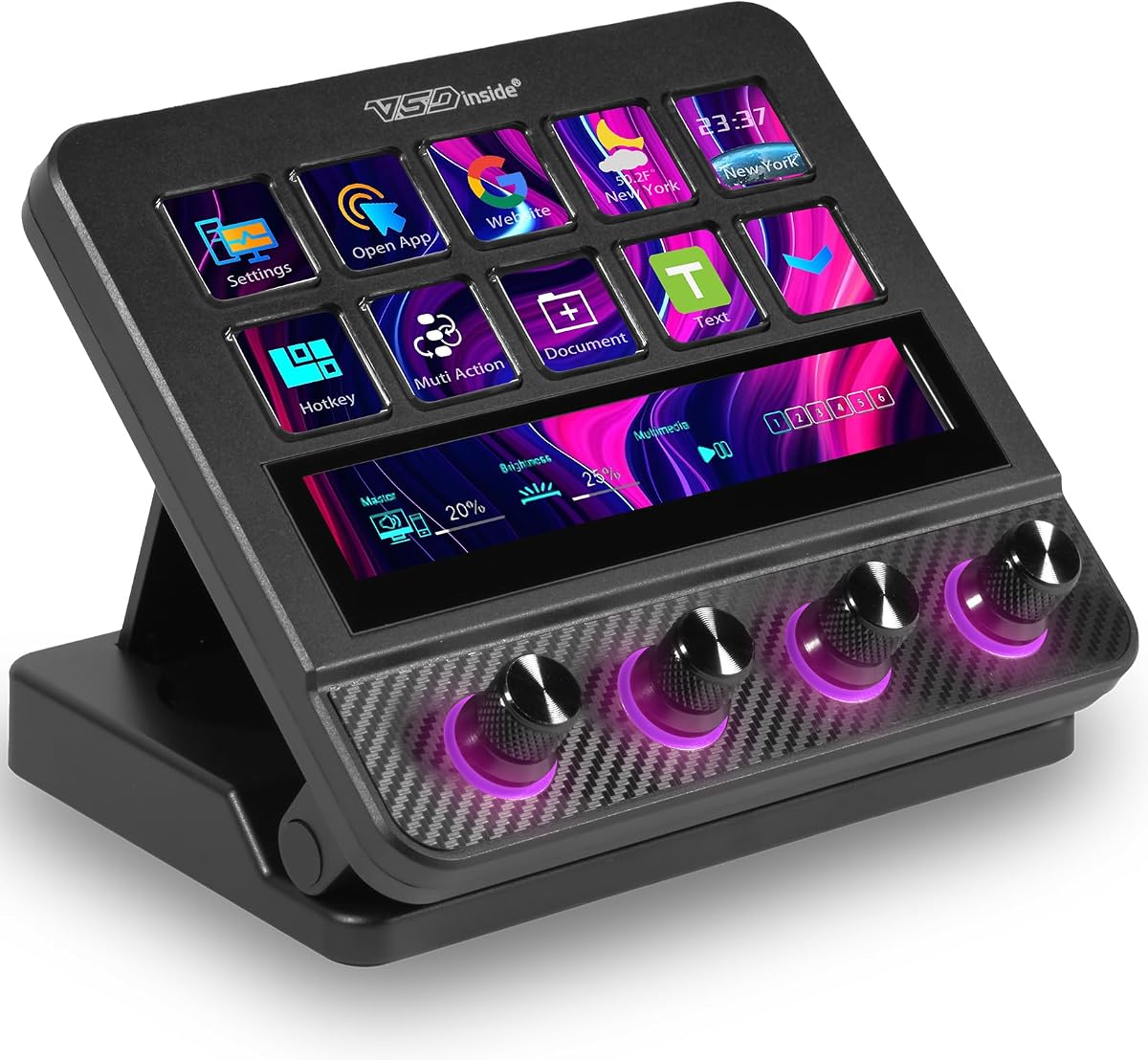
The VSD N4 Pro is the most elaborate studio-style controller in the comparison, combining a 4.4 customer rating with 10 LCD keys, four RGB knobs, an interactive touch bar, and a built-in USB dock. Its feature set is aimed at creators who want more than simple keyboard shortcuts and need precise controls within one device.
We may earn a commission when you buy through this link, at no additional cost to you.
The LCD keys support configurable hotkeys, chained operations, and custom PNG, JPG, or GIF icons. The N4 Pro can store independent scene presets for streaming, editing, gaming, and office use. Its USB sound deck function sends play, pause, and other supported audio-control commands to the computer, allowing sound effects and background-audio workflows to be triggered from the console. It does not contain built-in speakers for direct sound output.
Dynamic RGB lighting can be adjusted and synchronized with audio, while the foldable 60-degree stand positions the display for viewing or storage. The passive USB dock adds connectivity for peripherals such as mice, keyboards, and storage drives. More than 500 official plugins expand the available functions, although this broader ecosystem requires deliberate configuration.
The N4 Pro is best for advanced streamers, editors, and gamers who value physical controls, audio command control, and desk integration in a single surface. Buyers should account for its larger footprint and understand that its sound-deck feature controls computer audio rather than acting as a standalone speaker system.
Four programmable knobs and an interactive touch bar add continuous control options that key-only decks do not provide. They can support detailed adjustments in a studio-style workflow.
The built-in passive USB dock provides additional peripheral connections without requiring a separate hub. Combined with the adjustable stand, it creates a central station for a creator's keyboard, mouse, and storage devices.
We may earn a commission when you buy through this link, at no additional cost to you.
The right macro pad depends on the commands you use, the space available, the applications in your workflow, and how much physical control you need. Compare key capacity, audio features, software support, platform requirements, and setup demands before making a choice.
Key count determines how many commands can remain visible at once. Six-key decks suit a focused set of essential shortcuts, while 15-key controllers provide a more comfortable balance for scenes, media, applications, and editing commands. The 18-key options offer additional capacity, and controllers with knobs or a touch bar are better for precise, continuous adjustments.
Count the commands you genuinely use during a typical stream, then leave a little room for future actions. A crowded layout is not necessarily more useful than a smaller, well-organized one.
LCD keys help users recognize commands without memorizing every shortcut. Custom JPG, PNG, GIF, screenshots, and animated icons make the controls more informative, while dedicated status panels can show system information beside the action keys. Consider whether static labels are enough or whether animated indicators would materially improve your workflow.
Prioritize readable layouts, clear visual feedback, and the ability to personalize key icons. A larger display may be helpful, but clarity and useful organization matter more than sheer screen size.
A useful macro pad should handle both single commands and repeated sequences. Single-action keys are ideal for scene changes, launches, and mute commands. Sequential or simultaneous macros can combine multiple supported actions behind one press, saving time during fast transitions and repetitive editing work.
Check whether the software supports ordered execution, chained actions, profiles, and folders. These features are particularly helpful when one controller serves broadcasting, editing, gaming, and office tasks.
Some macro pads include an interactive touch bar, rotary knobs, or a computer sound-deck function. These can control volume, microphone levels, playback, sound effects, and background audio without returning to the mouse. Understand the implementation: a controller that sends audio commands to the computer is not the same as a product with built-in speakers for sound output.
For audio-heavy streams, prioritize tactile level controls and a broad set of supported audio actions. For simpler broadcasts, dedicated scene and playback keys may provide all the control required.
Configuration software determines how easy it is to assign commands, import icons, organize scenes, and connect applications. Elgato offers established integrations for major streaming and productivity tools, while the VSD and STREONOR ecosystems also provide substantial plugin and layout options. Some functions may depend on a related service account, subscription, or membership.
Review the current software requirements and plugin list before buying. Remove competing stream-controller software when the manufacturer recommends it, and download the latest official software before beginning configuration.
Most devices in this comparison support Windows and macOS, but the exact minimum versions differ. Native Linux support is absent or limited on several models, although the VSD Mini offers official open-source SDK files for users willing to perform custom adaptation. Mac support usually requires a recent version, so verify the current system requirement before installation.
Choose a controller that is explicitly supported by your production computer. If your workflow depends on Linux, investigate community or SDK-based development rather than assuming cross-platform behavior.
Macro pads range from a compact six-key device to a broad studio console with knobs, a touch bar, a stand, and a USB dock. A vertical deck can save horizontal desk space, while a small unit is easier to position beside a compact keyboard. Advanced controllers may improve workflow control but require more room and a deliberate viewing angle.
Consider your desk depth, monitor placement, mouse position, and dominant hand. A vertical left-hand layout suits some users, while a stand-based console may be better for dedicated broadcast desks.
Some options emphasize straightforward USB-C setup, while others explicitly require their configuration software. Firmware updates may be needed before initial use or to unlock custom lighting colors, and similar controller programs can cause conflicts if left installed. Ongoing software updates are also important as applications and operating systems evolve.
Choose a level of setup effort that matches your technical confidence. If you want the shortest path to a working layout, favor a product with a mature setup process and broad familiar integrations; if you enjoy customization, a more configurable ecosystem may be worthwhile.
Begin by connecting the controller directly to the computer with the specified USB cable, then install the latest official configuration software and any required firmware updates. If the manufacturer recommends removing similar controller software, uninstall competing programs first. This helps prevent conflicts and establishes a clean connection before assigning commands.
Organize the keys by task rather than by application. Start with scene changes, microphone mute, start or stop streaming, media playback, alerts, and the programs you use most often. Add custom icons that clearly represent each action, then create separate profiles or pages for live broadcasts, editing, gaming, and office work. Test single commands before building longer multi-step sequences.
During use, keep the controller stable, avoid placing drinks or other liquids near it, and clean the LCD surfaces with a soft, dry cloth. Do not pull the cable sideways or sharply bend the connector. Periodically review software updates, back up important layouts if the application supports export, and test critical broadcast actions before a live session rather than discovering a problem during one.
A macro pad for streaming is a programmable desktop controller that turns keyboard shortcuts, application actions, scene changes, and media commands into dedicated buttons. Many models use small LCD screens so each action can have a recognizable label or icon. They reduce repetitive keyboard input and keep important broadcast controls close at hand.
LCD macro pads are usually easier to remember because each action has a visible label, icon, or status. Keyboard shortcuts remain faster for users who know them well and require no separate hardware, but they can be difficult to recall during a live broadcast. A macro pad is especially useful for frequent scene changes, sound effects, application launches, and multi-step workflows.
Not necessarily. Knobs are most useful when a stream requires frequent level changes, audio mixing, zoom adjustments, or other continuous controls. If your workflow mainly uses fixed actions such as switching scenes, muting a microphone, or launching applications, a keypad with programmable LCD keys may be sufficient. Advanced controllers add convenience rather than serving every essential function.
Yes, most of the controllers compared here explicitly support OBS, and many also list Streamlabs, Twitch, YouTube, and related applications. Exact functions depend on the controller software, plugin versions, operating system, and the actions supported by each program. Update the controller software and test critical commands before going live.
The products in this guide primarily support Windows and macOS, although minimum system versions differ. Several models do not offer native Linux support, while the VSD Mini includes official open-source SDK files for custom Linux adaptation. Check the current product requirements before purchasing, particularly if you use an older operating system.
Six keys are sufficient for a small collection of essential commands, while 10 to 15 keys provide more comfortable scene organization and room for audio, media, and application controls. An 18-key deck suits users with extensive workflows, but only if they can label and remember the entire layout clearly. Prioritize a manageable number of visible commands over maximum capacity.
Some macro pads can send audio control commands to the computer, allowing users to trigger supported playback, pause, sound-effect, or background-audio actions. That function does not necessarily produce audible sound by itself. The VSD N4 Pro, for example, controls computer audio but has no built-in speakers for direct output.
Updates can improve compatibility, correct problems, unlock features, and add support for changing applications. Some manufacturers specifically recommend updating both firmware and software before initial use. Installing current versions also helps ensure that plugin connections and operating-system requirements work as intended, although users should also remove conflicting controller software when instructed.
The Elgato Stream Deck MK.2 is the strongest all-around recommendation because it combines 15 clear LCD keys, single and multi-action commands, visual feedback, and a mature integration ecosystem. The VSD Mini Macro Pad is the practical compact choice, while the Streonor S10 stands out for creators who want a larger console with a touchscreen, programmable knobs, and precise audio adjustments.
Prioritize the controls that match your actual workflow. Choose a six-key pad for a small command set, a 15-key model for organized production controls, or an 18-key option when macros and multiple applications demand more space. Consider audio knobs, touchscreens, status displays, vertical layouts, USB hubs, and adjustable stands only when they solve a recurring task in your stream.
Finally, confirm operating-system support, configuration requirements, plugin dependencies, and current software documentation before making a final selection. Ratings, software interfaces, bundles, and deal terms can change, so recheck the latest listing information and test essential commands before your next live broadcast.